
How to Type Wingdings in Word, Excel & Google Docs (Every Method)
Wingdings symbols don’t work like regular text — you can’t just type them from the keyboard. Each symbol is hidden behind a specific key, and you need to know where to look. This guide covers every method for inserting Wingdings symbols in Microsoft Word, Excel, and Google Docs, including keyboard shortcuts, Alt codes, and the Symbol menu.
How to Type Wingdings in Microsoft Word
Word gives you the most options for inserting Wingdings. Here are all four methods, from fastest to most thorough.
Method 1: Change the Font Directly (Fastest)
This is the quickest way if you know which key corresponds to your symbol:
- Click where you want the symbol
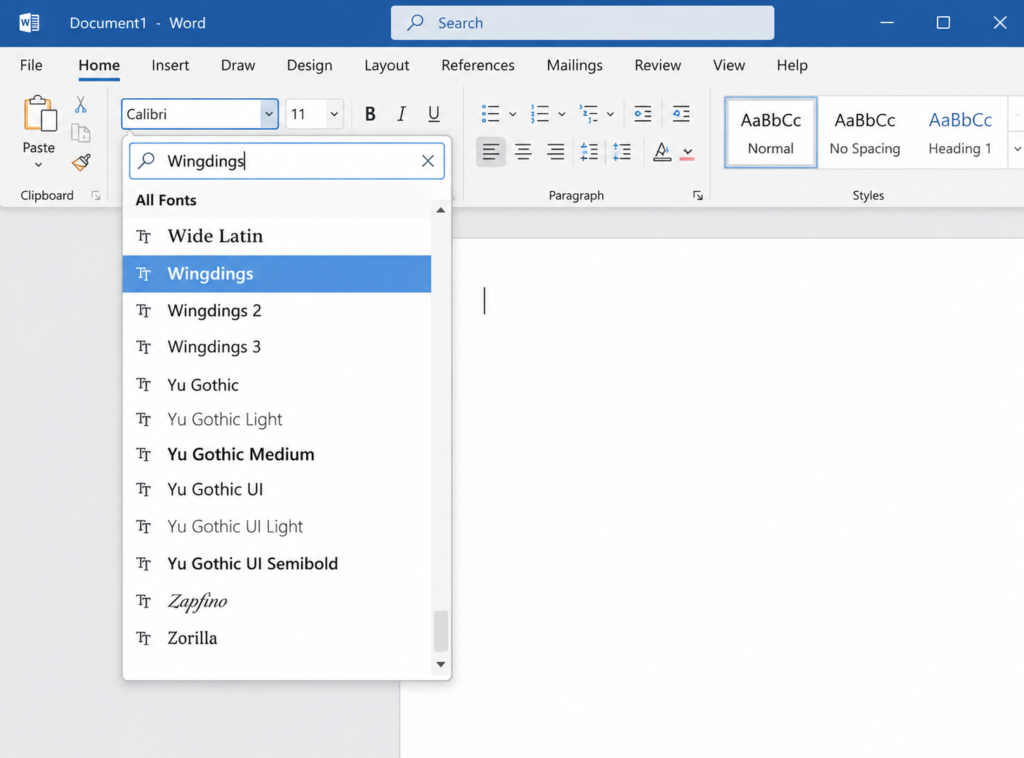
- In the Font dropdown, type Wingdings and press Enter
- Now type any letter — it will appear as a Wingdings symbol
- When you’re done, switch the font back to your normal font (e.g., Calibri)
Example: With Wingdings active, pressing J gives you a smiley face ☺, pressing L gives a sad face ☹, and pressing N gives a checkmark ✓.
Method 2: Insert → Symbol Menu (Most Reliable)
Use this when you want to browse all available symbols visually:
- Click Insert in the top menu
- Select Symbol → More Symbols
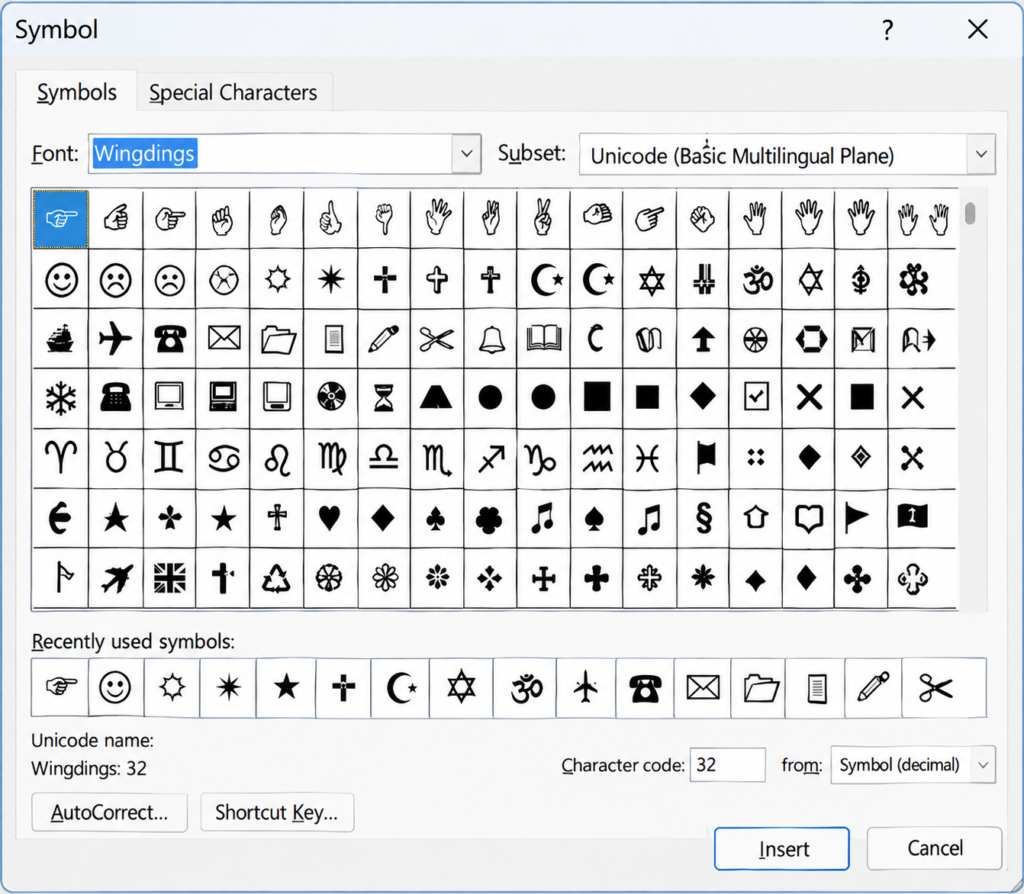
- In the Font dropdown inside the Symbol dialog, select Wingdings
- Browse the grid and click your desired symbol
- Click Insert, then Close
Pro tip: After inserting a symbol this way, Word remembers it. Your recently used symbols appear at the bottom of the Symbol dialog — saving time next time.
Method 3: Alt Codes (Number Pad Only)
Alt codes let you insert specific Wingdings symbols using your keyboard’s numeric keypad. Important: This only works with Wingdings font already applied to your cursor position, and requires a physical numeric keypad (not the number row).
First, set your font to Wingdings. Then hold Alt and type the code on the numeric keypad:
| Symbol | Alt Code | Result |
|---|---|---|
| Checkmark ✓ | Alt + 0252 | ✓ |
| Checkmark in box ☑ | Alt + 0254 | ☑ |
| Cross ✗ | Alt + 0251 | ✗ |
| Smiley face ☺ | Alt + 0074 | ☺ |
| Star ★ | Alt + 0084 | ★ |
| Phone ✆ | Alt + 0070 | ✆ |
| Pointing hand ☞ | Alt + 0041 | ☞ |
Release Alt after typing the full number — the symbol appears instantly.
Method 4: AutoCorrect Setup (Best for Repeated Use)
If you insert the same Wingdings symbol frequently (like a checkmark), set up AutoCorrect so Word replaces a short code automatically:
- Insert your Wingdings symbol using any method above
- Go to File → Options → Proofing → AutoCorrect Options
- In the Replace field, type a trigger like
(check) - In the With field, make sure your Wingdings checkmark symbol is there
- Click Add, then OK
Now every time you type (check) in Word, it automatically converts to your Wingdings checkmark.
How to Type Wingdings in Microsoft Excel
Excel handles Wingdings slightly differently than Word — cells have a single font applied to everything inside them, so mixing Wingdings with regular text in one cell is tricky.
Method 1: Change Cell Font to Wingdings
- Click the cell where you want a symbol
- In the Home tab, find the Font dropdown and type Wingdings
- Type the letter corresponding to your symbol
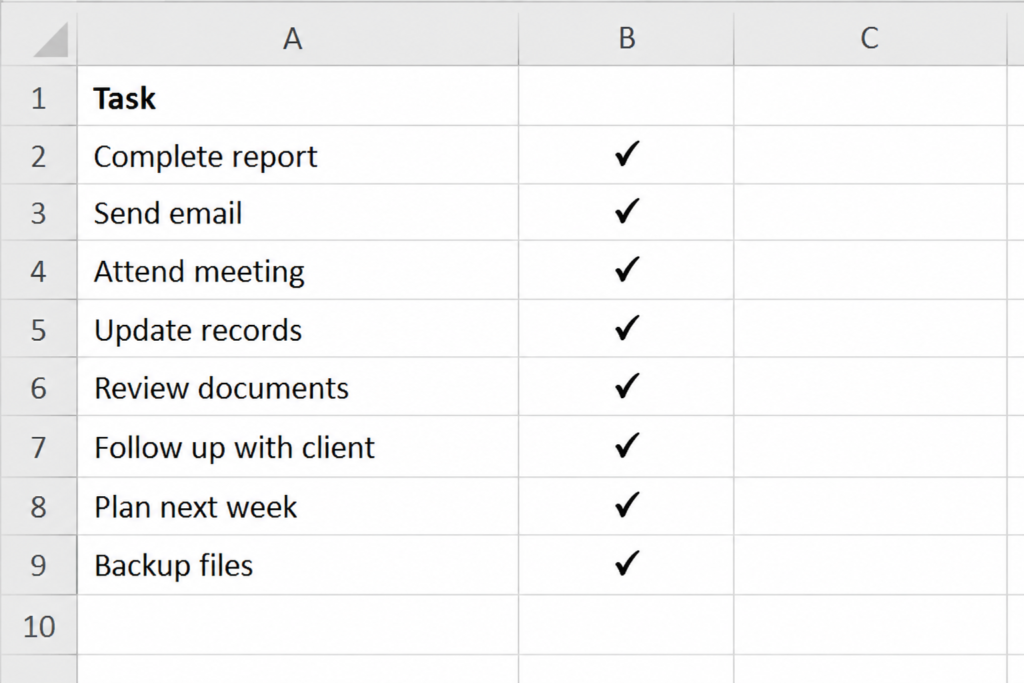
Note: The entire cell will now display in Wingdings. If you need regular text in the same cell alongside a symbol, use a separate cell for the symbol.
Method 2: Wingdings 2 Keyboard Shortcuts (Excel-Specific)
Excel users love these because they work with Wingdings 2 — a slightly cleaner set of checkmarks:
- Select your cell
- Change the font to Wingdings 2
- Use these shortcuts:
| Shortcut | Symbol |
|---|---|
| Shift + P | ✓ Checkmark |
| Shift + O | ✗ Cross mark |
| Shift + R | ☑ Checkmark in box |
| Shift + Q | ☐ Empty checkbox |
These are the fastest Wingdings shortcuts in Excel for checklists and to-do trackers.
Method 3: CHAR() Formula
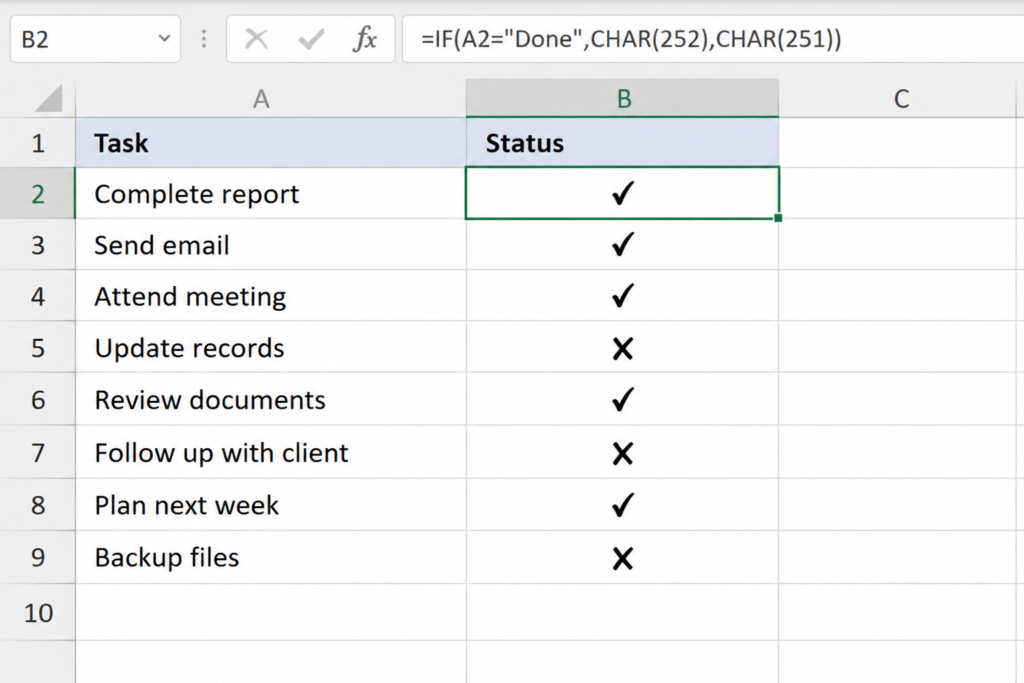
Excel’s CHAR() function can generate Wingdings symbols using a formula — useful when you want symbols to appear automatically based on other cell values:
- Enter this formula in a cell:
=CHAR(252) - Change that cell’s font to Wingdings
- The cell now shows a checkmark ✓
Common CHAR codes for Wingdings:
| Formula | Font Needed | Result |
|---|---|---|
=CHAR(252) | Wingdings | ✓ Checkmark |
=CHAR(254) | Wingdings | ☑ Boxed checkmark |
=CHAR(251) | Wingdings | ✗ Cross |
You can combine this with an IF statement: =IF(A1="Done", CHAR(252), CHAR(251)) — then apply Wingdings font to show a checkmark for “Done” and a cross for anything else.
Method 4: Insert → Symbol in Excel
Same as Word — go to Insert → Symbol, select Wingdings from the font list, pick your symbol, and click Insert.
How to Type Wingdings in Google Docs
Here’s the honest truth: Google Docs does not have Wingdings. The font is not available in Google’s font library, and you cannot add it through Google Fonts either.
But you have three good workarounds:
Workaround 1: Use Google Docs Special Characters (Best Option)
Google Docs has its own symbol library that covers most Wingdings equivalents:
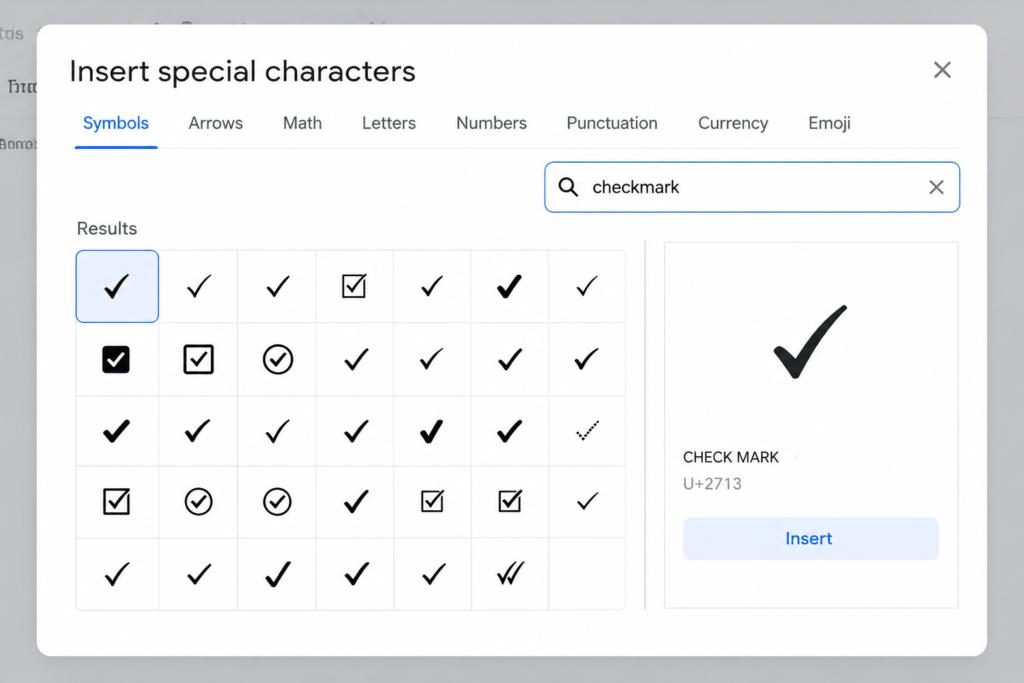
- Click Insert → Special Characters
- Use the search box to find what you need — try searching “checkmark,” “arrow,” “star,” “phone,” etc.
- Click the symbol to insert it directly
These symbols are proper Unicode characters — they work on every device and don’t require any special font.
Workaround 2: Copy from Word or a Translator Tool
If you specifically need actual Wingdings symbols in Google Docs:
- Open a Wingdings translator tool in your browser
- Type your text to get the converted symbols
- Copy the result
- Paste into Google Docs
Important: The pasted symbols may not look exactly like Wingdings on other users’ screens if they don’t have the font installed.
Workaround 3: Use Emoji Instead
For most purposes, emoji are a direct replacement for what people use Wingdings for:
| Instead of Wingdings… | Use this emoji |
|---|---|
| Checkmark (N key) | ✅ or ✓ |
| Cross (O key) | ❌ or ✗ |
| Star (T key) | ⭐ or ★ |
| Smiley (J key) | 😊 |
| Phone (F key) | 📞 |
Emoji work in Google Docs, Word, Excel, websites, and mobile — no font installation required.
Quick Reference: Which Method to Use
| App | Fastest Method | Best for Power Users |
|---|---|---|
| Word | Change font → type letter | AutoCorrect setup |
| Excel | Wingdings 2 + Shift+P | CHAR() formula |
| Google Docs | Insert → Special Characters | Copy from translator |
Most Useful Wingdings Key Mappings
Keep this table bookmarked — it works for both Word and Excel:
| Key | Wingdings Symbol | Key | Wingdings Symbol |
|---|---|---|---|
| J | ☺ Smiley | N | ✓ Checkmark |
| K | 😐 Neutral face | O | ✗ Cross |
| L | ☹ Sad face | P | ✖ Bold cross |
| F | ✆ Phone | T | ★ Star |
| E | ✉ Envelope | ! | ✏ Pencil |
Now you have every method available for every app. Bookmark this page — it’s the only Wingdings typing reference you’ll ever need.