How to Use Wingdings in Google Docs (Fast Step-by-Step)
If you have ever opened Google Docs, clicked on the font dropdown menu, and searched for Wingdings, you were probably met with disappointment: Wingdings is nowhere to be found.
Whether you are trying to create an eye-catching classroom handout, add decorative arrows and checkmarks to a report, or decode secret puzzle messages, not having Wingdings in Google Docs can be frustrating.
In this guide, you will learn why Wingdings is missing from Google Docs and discover the fastest, easiest methods to use Wingdings symbols in your documents today.
Why Doesn’t Google Docs Have Wingdings?
Before jumping into the solutions, it helps to understand why the font isn’t available by default.
- Wingdings is a Proprietary Microsoft Font: Wingdings was designed in 1990 by Charles Bigelow and Kris Holmes and licensed exclusively to Microsoft. It comes pre-installed on Windows and macOS, but it is not an open-source web font.
- Google Docs Uses Web Fonts (Google Fonts): Google Docs runs in your web browser and relies entirely on the Google Fonts library. Because Google does not license Microsoft’s proprietary dingbat fonts, Wingdings cannot be added directly to the font dropdown list.
- Font Uploads Are Not Supported: Unlike desktop software like Microsoft Word, Google Docs does not currently allow users to upload custom
.ttfor.otffont files from their computer.
Fortunately, you don’t need the font installed to use its symbols. Thanks to modern Unicode standards, you can insert and display Wingdings characters in Google Docs with ease.
Method 1: The Fastest Way — Use an Online Wingdings Translator (Recommended)
If you want to convert entire words, sentences, or paragraphs into Wingdings, typing symbols one by one is painful. The quickest method is using a dedicated online converter that translates your text into universal Unicode symbols.
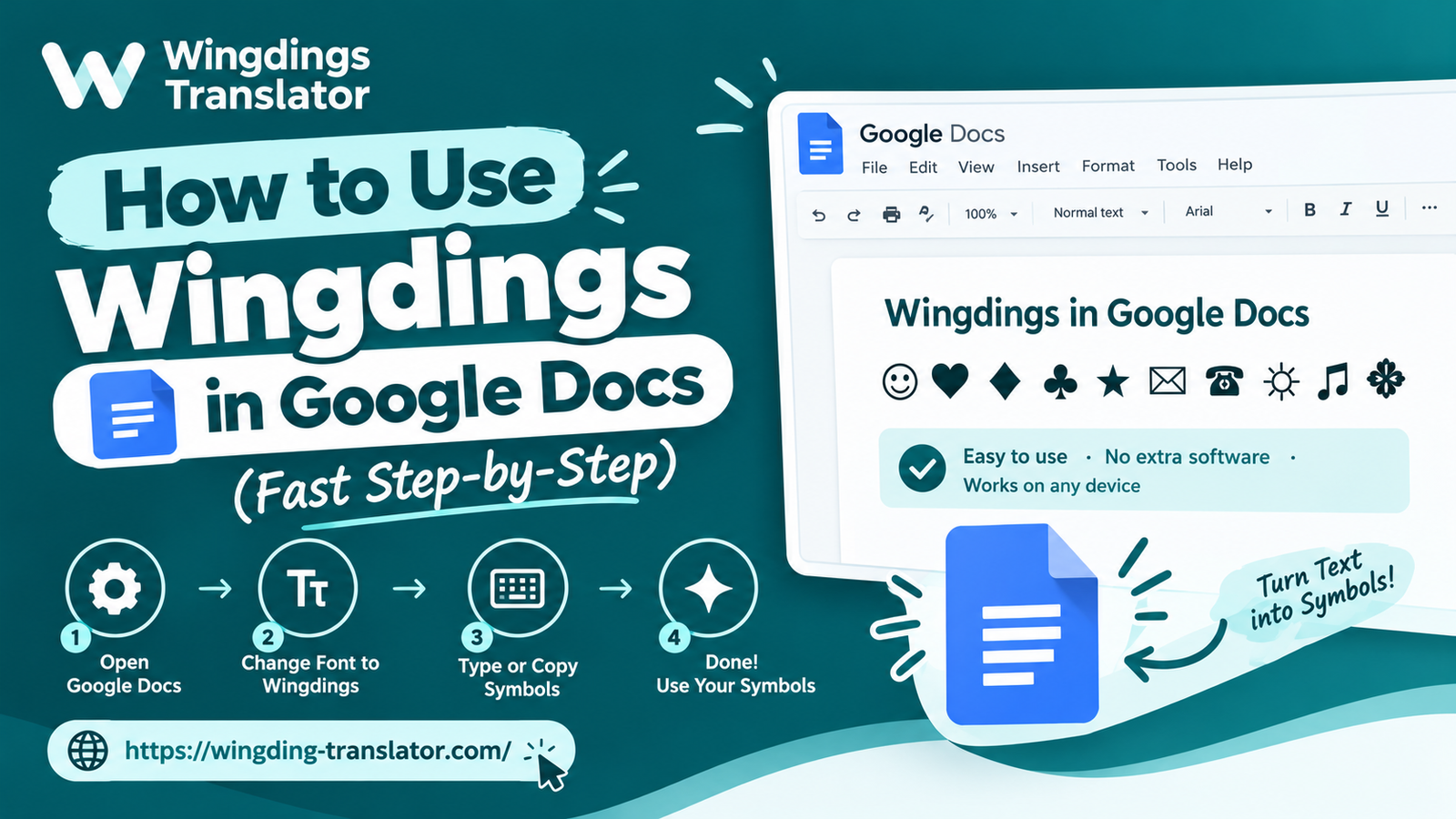
Here is how to do it in 4 simple steps:
Step 1: Open the Translator
Go to the free Wingdings Translator.
Step 2: Type or Paste Your Text
Enter your regular English text into the input box on the left. You can type words, numbers, or full sentences.
Step 3: Copy the Converted Symbols
As you type, the tool instantly converts your text into Wingdings characters (supporting Wingdings 1, Wingdings 2, Wingdings 3, and Webdings). Click the Copy button next to your desired font style.
Step 4: Paste into Google Docs
Open your Google Doc, place your cursor where you want the symbols, and press Ctrl + V (Windows) or Cmd + V (Mac).
Why this is the best method: Because the symbols generated are Unicode characters, they will display properly for anyone who views your Google Doc—even if they open it on a mobile phone or a Chromebook that doesn’t have Microsoft fonts installed!
Method 2: Use Google Docs’ Built-In “Insert Special Characters” Menu
If you only need a single symbol (such as an arrow, a star, or a telephone icon) and don’t want to leave Google Docs, you can use the built-in character palette.
Here is how to find Wingdings-style symbols natively in Google Docs:
- Open your document in Google Docs.
- Click on Insert in the top navigation bar.
- Select Special characters.
- A popup window will appear with thousands of symbols. You can find your symbol in two ways:
- Search by Keyword: Type words like “arrow”, “pointing hand”, “star”, “smiley”, or “check mark” into the search bar on the right.
- Draw the Symbol: Use your mouse or touchpad to sketch the shape in the large drawing box. Google will automatically suggest matching Unicode characters.
- Click on the symbol you want, and it will be inserted directly at your cursor position.
Limitation: This method is great for 1 or 2 icons, but it is too slow if you want to write a full sentence in secret code or symbol text.
Method 3: Set Up Automatic Text Substitutions for Frequently Used Symbols
Do you find yourself using the same Wingdings checkmark, star, or pointing hand repeatedly in your notes or checklists? You can create custom typing shortcuts so Google Docs auto-replaces your text with the symbol.
How to set it up:
- Copy the Wingdings symbol you want from our Wingdings Chart (for example, the checkmark:
✔or the pointing finger:☞). - In Google Docs, click on Tools in the top menu.
- Select Preferences, then click on the Substitutions tab.
- In the Replace column, type a shortcut code that you won’t accidentally type in daily writing (e.g.,
:check:or(star)). - In the With column, paste your copied Wingdings symbol.
- Click OK.
Now, whenever you type :check: and hit the spacebar, Google Docs will automatically convert it into your Wingdings symbol!
Comparison: Which Method Should You Choose?
| Method | Best For | Speed | Device Compatibility |
|---|---|---|---|
| Online Translator | Full sentences, secret codes, paragraphs | ⚡ Instant | 100% (All Devices & Phones) |
| Insert Special Characters | 1 or 2 individual icons | 🐢 Slow | 100% |
| Custom Substitutions | Repeated icons & checkmarks | ⚡ Fast (after setup) | Google Docs Only |
Troubleshooting: Why Do Some Wingdings Symbols Look Like Blank Boxes?
If you paste symbols into Google Docs and see empty square boxes (often called “tofu” characters: □), this means the font or browser you are using does not have a visual glyph mapped to that specific Unicode position.
To fix this:
- Highlight the pasted text in Google Docs and change the font family to a widely compatible Unicode font like Arial, Noto Sans, or Segoe UI Symbol.
- Ensure your browser is up to date. Modern browsers (Chrome, Edge, Firefox, Safari) support over 99% of all Wingdings Unicode mappings.
Frequently Asked Questions (FAQ)
Can I install the official Wingdings font into Google Docs?
No. Google Docs only supports fonts available in the official Google Fonts directory. You cannot upload external .ttf files to Google Docs. Using a copy-and-paste Unicode converter is the standard workaround.
Will other people see the Wingdings symbols if I share the Google Doc?
Yes! Because methods like our Wingdings Translator convert text into universal Unicode characters rather than relying on a local system font file, anyone who views your shared document or PDF will see the exact same symbols on their screen.
Can I download my translated Wingdings as an image?
Yes. If you need to make sure the symbols appear formatted identically across any graphic design project or document, you can use our image export feature on the homepage to download your text as a high-resolution PNG image.
Final Thoughts
While Google Docs doesn’t have a direct “Wingdings” option in its font dropdown, you don’t have to miss out on the nostalgia and fun of Microsoft’s famous dingbat font.
For single icons, use Insert > Special characters. But for writing secret messages, puzzles, or creative headers, simply hop over to our free Wingdings Translator, type your message, and paste it straight into your document!