How to Type Wingdings on iPhone & iPad (Easy iOS Keyboard Guide)
Have you ever wanted to send a secret coded message to a friend on iMessage, decorate your Instagram or TikTok bio with mysterious symbols, or type like W.D. Gaster from Undertale on your phone?
If you pick up your iPhone or iPad and open your keyboard settings, you will quickly notice something missing: there is no “Wingdings” keyboard in iOS.
Because Wingdings is a legacy desktop font created by Microsoft rather than a standard language, Apple does not include it as a system-wide typing language.
However, you can easily type Wingdings symbols on iOS!
In this comprehensive guide, we will walk you through the 3 best methods to type and send Wingdings on an iPhone or iPad, from instant copy-paste tricks to native iOS keyboard shortcuts.
Method 1: The Fastest Way — Use an Online Mobile Translator (Recommended)
If you want to type entire sentences, secret messages, or paragraphs in Wingdings, setting up individual shortcuts takes too long. The quickest and most reliable method on iOS is using a mobile-friendly online translator.
Here is how to do it in Safari or Chrome on your iPhone:
- Open Safari and go to the free Wingdings Translator.
- Type your message into the English text box.
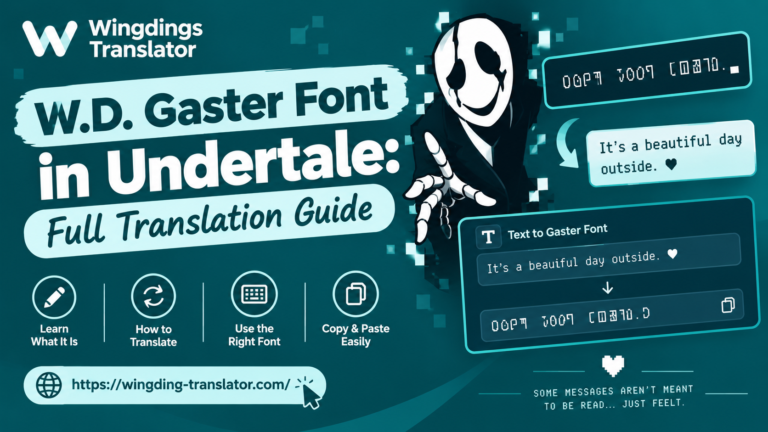
- Pro-Tip: If you want the authentic W.D. Gaster Undertale look, turn on Caps Lock on your iOS keyboard before typing!
- The tool will instantly convert your text into universal Unicode Wingdings symbols.
- Tap the Copy button.
- Switch over to iMessage, WhatsApp, Notes, Instagram, or Discord, tap and hold the text field, and tap Paste.
Why this is the best method: Because the converter outputs standardized Unicode characters, anyone you text will see the exact same symbols on their screen—even if they are on an Android phone, a Windows PC, or a Mac!
Method 2: Use Apple’s Built-in “Text Replacement” (Type Directly from Your iOS Keyboard)
Do you have a few favorite Wingdings symbols (like arrows, stars, or the peace sign) that you use all the time? You can set up iOS Text Replacement so that your iPhone automatically swaps a short code for a Wingdings symbol as you type.
No third-party apps required!
Step-by-Step Setup:
- Copy the Wingdings symbol you want from our Wingdings Alphabet Chart (for example, the victory peace hand:
✌︎or the pointing finger:☞︎). - On your iPhone or iPad, open the Settings app.
- Tap General ➔ Keyboard.
- Tap Text Replacement.
- Tap the “+” (Plus icon) in the top-right corner.
- In the Phrase field, paste the symbol you copied.
- In the Shortcut field, type an easy trigger word (for example,
!peaceor!pointor!star). - Tap Save in the top-right corner.
Now, whenever you are texting on your iPhone and type !peace, iOS will automatically offer your Wingdings symbol in the predictive text bar or convert it when you tap the spacebar!
Method 3: Use a Third-Party Unicode / Symbol Keyboard App
If you want a dedicated keyboard where you can tap symbols just like normal letters, you can install a symbol keyboard from the Apple App Store.
Popular options include:
- Uni Keyboard (A comprehensive Unicode character picker)
- Symbol Keyboard / Fonts Art
How to enable a third-party keyboard on iOS:
- Download your chosen symbol app from the App Store.
- Go to Settings ➔ General ➔ Keyboard ➔ Keyboards.
- Tap Add New Keyboard… and select the installed app.
- When typing, tap the Globe icon (🌐) at the bottom left of your keyboard to switch to the symbol keyboard.
⚠️ Important Note on “Full Access”: Many third-party keyboard apps request “Allow Full Access.” While Apple provides privacy warnings, if you are uncomfortable granting access, sticking to Method 1 (Online Converter) or Method 2 (Text Replacement) is 100% private and safe.
The Big Myth: Can You “Install” the Wingdings .TTF Font on iPhone?
You might find some tutorials online recommending apps like iFont or AnyFont to download a Wingdings .ttf file and install a configuration profile on iOS.
Here is the truth: While you can install custom .ttf fonts on iOS, Apple strictly confines installed fonts to document-editing apps that support the iOS Font Picker (such as Pages, Keynote, and Microsoft Word for iOS).
Installing a .ttf font will NOT change your iPhone’s system keyboard and will not allow you to type Wingdings inside iMessage, WhatsApp, or Instagram.
For messaging and social apps, copy-pasting Unicode characters via our Wingdings Keyboard Guide remains the only functional method.
Why Do Some Symbols Look Like Colorful Emojis on iPhone?
When you paste certain Wingdings characters onto an iPhone, you might notice that a few of them (like the skull ☠, snowflake ❄, or water drop 💧) display as colorful Apple emojis instead of black-and-white flat symbols.
- Why does this happen? Apple’s iOS font rendering engine automatically prioritizes its built-in Apple Color Emoji font for specific overlapping Unicode codepoints.
- How to fix it: If you want pure monochrome symbols, you can view your text through our tool’s image download feature or stick to symbols that don’t have direct Apple emoji equivalents (like pointing hands, zodiac signs, and geometric crosses).
Frequently Asked Questions (FAQ)
Does Apple have an official Wingdings keyboard?
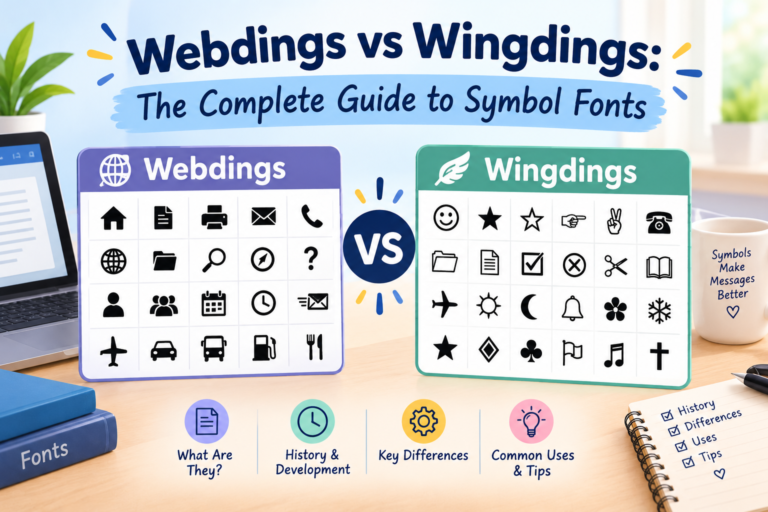
No. Apple provides keyboards for international human languages and emojis, but not for legacy proprietary dingbat fonts like Wingdings or Webdings.
Will Android users be able to read the Wingdings I text them from my iPhone?
Yes! As long as you use Unicode-based Wingdings from a translator, modern Android phones (Samsung, Google Pixel, Xiaomi, etc.) will render the exact same symbols without any issues.
(Are you an Android user? Check out our companion guide: How to Type Wingdings on Android).
How do I type W.D. Gaster’s Undertale font on my iPhone?
To write Gaster’s dialogue on your phone, open our Wingdings Translator, double-tap the Shift arrow on your iPhone keyboard to turn on Caps Lock, type your text, and copy the output. Gaster’s in-game dialogue always uses uppercase Wingdings 1 characters!
Summary
Typing Wingdings on your iPhone or iPad is fast and easy once you know the right tricks:
- Use the free Wingdings Translator for full messages and secret codes.
- Use Settings > Text Replacement for your most frequently used individual symbols.
Bookmark our translator on your Safari home screen so you can generate and send mysterious Wingdings symbols anytime with a single tap!